
Search Console Regex: Filters, Syntax, and Fixes That Work
SERPView Team
SEO Analytics

Search Console lets you filter the Query and Page dimensions with regular expressions built on Google’s RE2 engine, which means you can isolate branded searches, question phrases, or entire URL folders in seconds. The catch: RE2 skips features like lookaheads and backreferences that you might know from other regex tools, and every pattern is capped at 4,096 characters.
To use it well, you need three things:
- A small set of RE2-safe metacharacters memorized (^, $, |, \b, (?i) cover most jobs)
- A clear sense of when to flip from Matches regex to Doesn’t match regex
- A troubleshooting habit for when a pattern returns zero rows or way too many
Key Takeaways
Search Console regex works best when you memorize a handful of RE2-safe symbols and pair Search Console filtering with a tool built to hold the resulting data volume.
| Point | Details |
|---|---|
| Regex only works on two dimensions | Search Console applies RE2 regex exclusively to the Query and Page fields in the Performance report. |
| RE2 skips advanced constructs | No lookaheads, lookbehinds, backreferences, or atomic groups; rewrite these as positive alternations. |
| Anchors prevent overmatching | Add ^, $, or \b whenever a pattern returns far more rows than expected. |
| Case sensitivity differs by dimension | Queries are lowercase by default; Page filters need (?i) when casing is uncertain. |
| Scale past the UI limits with Serpview | Export matched queries from Search Console and load them into Serpview for cross-property aggregation up to 50,000 rows. |
Table of Contents
- How to Use Regex Filters in Search Console
- What RE2 Syntax Actually Supports
- Query Examples: Branded, Long-Tail, and Transactional Filters
- Page Examples: Directories, Parameters, and Case Sensitivity
- Why Your Regex Pattern Returns Zero (or Too Many) Rows
- Scaling Past the Character and Row Limits
- Where SERPView Fits Once GSC Hits Its Ceiling
- Practical Regex Only Gets You So Far Without the Right Data Volume
- Getting More From Every Regex Filter You Build
- Sources
- FAQ
How to Use Regex Filters in Search Console
Getting to the filter takes four clicks. Open Performance → Search results, click + New, choose either Query or Page, then select Custom (regex) from the dropdown. Type your pattern, hit Apply, and the report reloads with only matching rows.
The dropdown next to your pattern is where the real decision happens:
- Pick Matches regex when you want to isolate a group. Example: every query containing “shoes.”
- Pick Doesn’t match regex when you want to see everything except a group. Example: every query that is not branded.
- Combine both in sequence. Filter Matches on a broad category first, then add a second Doesn’t match filter to strip out noise like navigational queries.
One detail trips up a lot of analysts moving between dimensions: Search Console stores queries in lowercase, but it preserves the actual casing of page URLs. That means a query filter almost never needs case-insensitivity, while a page filter often does.
Pro Tip: If a Page filter returns nothing but you know matching URLs exist, check casing first. It’s the single most common reason a URL pattern silently fails.
What RE2 Syntax Actually Supports
RE2 is faster and safer than the PCRE or JavaScript regex most SEOs learn first, but it trades away some convenience. It does not support lookaheads, lookbehinds, backreferences, or atomic groups, according to Search Console’s own documentation on advanced filtering. Any pattern built around (?!...) or \1 will fail outright.
Two constraints matter just as much as the missing features. Matching is partial by default, meaning shoes matches “running shoes,” “shoes for sale,” and “cheap-shoes-online” all at once unless you anchor it. And every pattern maxes out at 4,096 characters, which becomes relevant fast if you’re listing brand misspellings.
A short list handles nearly every real-world task:
^and$anchor the start and end of a string|separates alternatives (“cat|dog”)\bmarks a word boundary, preventing partial-word matches(?i)forces case-insensitive matching, critical for Page filters since URLs preserve casing.,*,+,?,[],(), and{}handle the rest: any character, repetition, character sets, and grouping
Practitioner consensus among SEOs who work in Search Console daily points to this same short list covering the overwhelming majority of regex needs. You rarely need more than these six or seven symbols.
Query Examples: Branded, Long-Tail, and Transactional Filters
These patterns go directly into the Query dimension’s Custom (regex) box. Each one solves a specific segmentation problem analysts hit constantly.
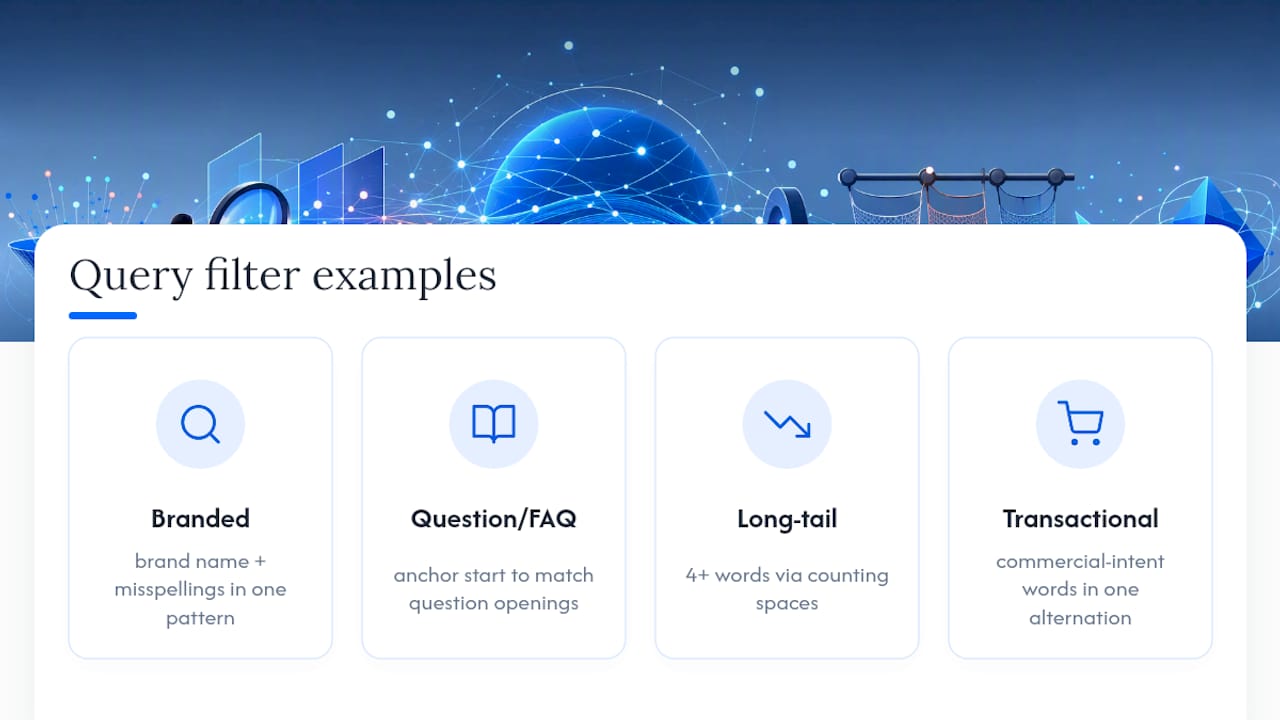
Branded query isolation. Catch your brand name plus common misspellings in one pattern:
\b(brandname|brnadname|brand name)\b
Flip the dropdown to Doesn’t match regex using the same pattern to see your non-branded query universe instead of writing a second filter from scratch.
Question and FAQ queries. Anchoring to the start of the string with ^ isolates queries that open with a question word:
^(who|what|where|when|why|how)\b
This pulls informational, top-of-funnel queries away from everything else, useful for content-gap analysis.
Long-tail queries by word count. Counting spaces approximates word count. Four or more words:
^(\S+\s+){3,}\S+$
Transactional intent grouping. Group commercial-intent words in one alternation:
\b(buy|price|discount|coupon|order|cheap)\b
Pro Tip: Build your transactional and branded lists as separate saved filters rather than one giant pattern. It keeps you well under the 4,096-character ceiling and makes each filter easier to debug later.
Google’s own quick tips on regex filters recommend exactly this approach: build the positive match, then reuse it with Doesn’t match instead of trying to write a negative pattern from scratch.
Page Examples: Directories, Parameters, and Case Sensitivity
Page filters behave differently from Query filters because URLs are case-sensitive and full of characters that mean something special in regex (dots, slashes, question marks).
Subdirectory isolation. Match every URL under a folder:
^https://example\.com/products/
Notice the escaped dot (\.) before “com” and before “products.” An unescaped dot matches any character, which usually still works by accident but is sloppy practice worth fixing.
Tracking parameters and pagination. Detect any URL with a query string:
\?.*=
Detect paginated URLs specifically:
page=\d+
Case sensitivity. Because Search Console preserves URL casing, a folder written as /Products/ in your CMS won’t match /products/ in a regex pattern. Prefix the pattern with (?i) to catch both:
(?i)^https://example\.com/products/
- Escape every literal dot in a domain or file extension
- Add
(?i)any time you’re not certain how a URL segment was cased at publish time - Test folder patterns against a handful of known URLs before trusting the full report
Why Your Regex Pattern Returns Zero (or Too Many) Rows
Three failure modes account for almost every broken filter, and each has a fast fix.
- Zero rows, pattern looks fine. You likely used an RE2-unsupported construct. Lookaheads, lookbehinds, and backreferences are the usual suspects, confirmed as unsupported in compatibility writeups covering RE2’s limits. Rewrite the logic as a positive alternation and use Doesn’t match instead.
- Too many rows, matching feels random. Partial matching is doing this to you. Add
\b,^, or$to pin the pattern down, then re-run. - Page filter returns nothing despite matching URLs existing. Case mismatch. Add
(?i)to the start of the pattern or manually verify the exact casing in a known URL.
Test iteratively: run the pattern on a short date range first, eyeball five or six matched rows, then widen the date range once you trust the output. Guides that walk through practical regex examples and troubleshooting consistently flag escaping and case sensitivity as the two mistakes that eat the most debugging time.
Scaling Past the Character and Row Limits
The 4,096-character cap sounds generous until you’re building a brand-protection filter with fifteen misspellings, three product lines, and a handful of legacy domain variants. At that point, split the list. Run one filter for brand terms, a second for product lines, and stack the results manually rather than cramming everything into one alternation.
- Break long alternations into two or three saved filters instead of one massive pattern
- Never try to fake a negative lookahead. Use Doesn’t match regex on the positive version instead
- When your analysis needs more rows than the Search Console UI exports, or spans more properties than one account tracks, export the matched query set and continue the work in an external analytics dashboard built for the volume
Search Console’s export limits are a UI constraint, not a data constraint. The underlying dataset is bigger than what you can pull through the interface.
Where SERPView Fits Once GSC Hits Its Ceiling
Search Console regex filters do the segmentation. What they don’t do well is aggregation across properties, or exporting past the row cap once your pattern surfaces a large result set. That’s the gap SERPView closes: it consolidates multiple Search Console properties into one dashboard and exports up to 50,000 rows instead of the standard 1,000.
The workflow is straightforward:
- Build and validate your RE2-safe pattern inside Search Console first
- Export the matching query or page set once you trust it
- Import that export into SERPView for cross-property aggregation, historical tracking, and visualization
Saved filters and custom annotations mean you don’t rebuild the same regex logic every reporting cycle. If you manage several client accounts, that saved setup pays off fast.
Pro Tip: Keep a running document of your validated RE2 patterns (branded, question queries, transactional intent). Reuse them across properties in SERPView instead of rewriting regex from memory every month.

Practical Regex Only Gets You So Far Without the Right Data Volume
Most regex advice online treats Search Console filtering as a syntax problem. It isn’t, not primarily. The syntax is genuinely simple once you internalize five or six symbols. The real bottleneck is that Search Console’s UI was never built to hold or export the volume of data a serious regex-driven audit generates.
Where conventional advice falls short is stopping at “here’s how to write the pattern.” A pattern that correctly isolates 4,000 transactional queries across three properties is useless if you can only see the first 1,000 rows and can’t stitch the properties together. That’s not a regex failure. It’s a tooling ceiling.
Prioritize this order: learn the RE2-safe pattern for your specific segmentation question first, validate it on a short date range, and only then worry about scale. Don’t reach for query-counting tools or export workarounds before you’ve confirmed the pattern itself is doing what you think it’s doing. Bad regex at scale is still bad regex. Fix the logic before you fix the volume problem.
Getting More From Every Regex Filter You Build
A well-built RE2 pattern is only as useful as the data behind it, and that’s exactly where Search Console’s 1,000-row cap starts to hurt. Serpview removes that ceiling: it pulls in up to 50,000 rows per export and lets you run the same regex-segmented query analysis across every property you manage, not just one at a time.
Once your branded, question, and transactional patterns are validated in Search Console, bring them into Serpview to save them as reusable filters, track how each segment performs historically, and share results with clients through a live dashboard instead of a static export. Start by connecting your properties and running your first cross-property regex export inside Serpview to see how much more of the picture you’ve been missing.
Sources
- Performance report (Search results): Advanced filtering and comparison - Search Console Help
- Search Console regex filters update and quick tips
- Google Search Console Regex: The Complete Library
- Regular Expressions (RegEx) in Google Search Console - UPDATED 2024
FAQ
What does (?i) mean in a Search Console regex pattern?
(?i) makes the pattern that follows case-insensitive, which matters most on Page filters since Search Console preserves the exact casing of URLs.
How do I search using regex in Search Console?
Go to Performance, click + New, choose Query or Page, select Custom (regex), and enter your pattern before choosing Matches regex or Doesn’t match regex.
Can I use regular expressions in Google Search?
Regular web search doesn’t support regex, but Search Console’s Performance report does, using Google’s RE2 syntax on the Query and Page dimensions.
Why does my regex pattern return zero rows in Search Console?
The most common cause is an unsupported RE2 construct like a lookahead or backreference; rewrite the logic as a positive alternation and use Doesn’t match regex if you need an exclusion.
How can I analyze more than 1,000 rows of regex-filtered data?
Export your matched query or page set from Search Console, then import it into a tool like Serpview to aggregate results across properties and pull up to 50,000 rows at once.
Recommended
Ready to unlock your full GSC potential?
SERPView helps you access all your Google Search Console data without limitations. Start your free trial today.
Get Started Free