
Chat With GSC Data in One Session: 7 Step Setup for SEOs
SERPView Team
SEO Analytics
Three routes let you chat with GSC data today: upload a CSV export to Claude or ChatGPT, query the Search Analytics API through a connector, or pipe a BigQuery bulk export into an LLM. Use CSV upload for quick, one-off checks. Use an API connector when you want scheduled, repeatable automation. Use BigQuery when you need full historical depth or a dataset larger than the API’s row limits allow.
TL;DR:
- Using CSV export is best for quick, one-time checks on small sites, but it does not support automation or large datasets.
- API connectors enable scheduled analysis for medium-sized sites with up to 25,000 rows per request, suitable for routine SEO monitoring.
- BigQuery bulk exports allow full historical analysis and scalability for large properties, with daily snapshot tables accessible via SQL queries.
- When connecting GSC data, use a service account with scoped read-only access and verify query results against the GSC UI to prevent inaccuracies.
- Asking actionable questions such as high-impression low-CTR queries or cannibalization issues yields the most practical insights from chat-based GSC analysis.
Table of Contents
- Three Practical Workflows to Chat With GSC Data
- Which GSC Export Should You Use for Analysis?
- How Do You Connect GSC Data to an LLM Securely?
- What Should You Ask an LLM About Your GSC Data?
- What Won’t GSC Data Tell an LLM (and How Do You Check It)?
- A 7-Step Checklist to Start Chatting With GSC Data
- Author Perspective: When Conversational GSC Analysis Actually Helps
- Get Conversational Access to Consolidated GSC Data With Serpview
- Sources
- FAQ
Three Practical Workflows to Chat With GSC Data
Each workflow trades convenience for scale, and picking the wrong one wastes more time than it saves.
CSV upload is the fastest way in. Export a Performance report from the GSC UI, drop the file into Claude or ChatGPT, and start asking questions. It works well for spot checks, one-time audits, or a quick gut check before a client call, but you’re capped at whatever the UI lets you download, and there’s no automation.
API and connector workflows suit teams running recurring analysis. You authenticate with a service account, pull data through the Search Analytics API, and pipe results into a chat interface using pagination to get past single-request limits. This is the right choice when you want the same query discovery or CTR analysis to run weekly without manual exports.
BigQuery bulk export is built for scale and history. Once enabled in GSC, it writes daily tables you can query directly, then connect to an LLM for conversation.
- CSV upload: best for ad hoc, small-property checks
- API connector: best for scheduled, repeatable automation
- BigQuery export: best for multi-year history and large properties
Which GSC Export Should You Use for Analysis?
The source you pick changes what you can actually learn, because each one exposes data differently.
The GSC UI and its CSV export give you clicks, impressions, CTR, and average position, but only the top rows visible in the interface, typically capped well below what larger sites generate. The Search Analytics API exposes the same metrics programmatically and supports rowLimit and startRow pagination, with a practical ceiling around 25,000 rows per request. That’s workable for mid-size sites but becomes a bottleneck for anything with tens of thousands of query-page combinations. BigQuery bulk export removes that ceiling entirely, writing daily snapshot tables you can query with standard SQL going back through your full retention window.
A few practical notes when choosing:
- Filter branded versus non-branded queries early, since branded traffic skews CTR and average position in ways that mislead an LLM asked to “find opportunities.”
- Remember that a meaningful share of queries arrive as “anonymized” in GSC’s own data, meaning very low-volume searches get grouped rather than shown individually.
- Pick date ranges deliberately. Comparing a 28-day window to a 3-month window inside the same chat session produces answers that look precise but aren’t comparable.
How Do You Connect GSC Data to an LLM Securely?
Authentication is where most setups go wrong, usually by granting more access than the task needs.

For automated or scheduled pulls, use a service account rather than a personal OAuth login. Grant it read-only access to the specific property in GSC, not domain-wide access across every site you manage. For one-off human-driven sessions, a standard OAuth user flow through Google’s own consent screen is simpler and doesn’t require managing a separate credential file.
Three architecture patterns cover most real setups:
- Local MCP connector: a small server running on your machine that uses a service account to expose GSC endpoints directly to Claude or another LLM. The mcp-gsc project is a working example of this pattern, and it keeps credentials and raw data off third-party servers, which agencies handling sensitive client accounts tend to prefer.
- Server proxy: a backend you control that queries GSC or BigQuery and passes clean results to a chat interface, useful when multiple team members need shared access.
- Direct BigQuery queries: an LLM issuing SQL through a secured backend, best suited to teams already comfortable with BigQuery access controls.
Note that Google’s Indexing API specifically requires a service account and only covers narrow content types, so don’t assume it substitutes for the Search Analytics API. After any setup, run one known query and confirm the numbers match the GSC UI before trusting anything else the LLM tells you.
What Should You Ask an LLM About Your GSC Data?
The value of chatting with GSC data comes down to asking questions that produce a specific, checkable answer, not a summary.
- High-impression, low-CTR queries: “List queries with over 500 impressions and CTR under 2% for the last 90 days, grouped by landing page.” This surfaces title and snippet problems fast, since strong impression volume with weak clicks usually points to a mismatch between what the page promises and what the search result shows.
- Cannibalization discovery: “Find queries where more than one URL on this domain ranks in positions 1 through 20 in the same week.” Pair this with a AI-powered keyword discovery for SEO approach to decide which page should own the query.
- Title and meta suggestions: “Given these 20 queries and their current titles, suggest revised titles that better match search intent.” Ask for three variants per page rather than one, so you can test.
- Bulk URL inspection summaries: “Summarize indexing status across these 50 URLs and flag anything not indexed.”
When you need reproducible proof, ask for the SQL or the raw CSV alongside the explanation, not just prose. Charts are useful for stakeholder decks; SQL is useful for verification. Converting query patterns into AI visibility prompts is also worth testing, since it shows which searches your content already ranks for that an AI assistant might cite.
Pro Tip: Ask for recommendations framed as actions, not observations. Instead of “CTR is low on these pages,” prompt for “list the 5 pages where a title change would most likely lift CTR, ranked by impression volume.” The second version tells you where to spend an hour today.
What Won’t GSC Data Tell an LLM (and How Do You Check It)?
An LLM answering questions about GSC data is only as reliable as the data’s own limits, and GSC has real ones.
Average position is exactly that, an average across every ranking that query and page combination logged, so a page bouncing between position 4 and position 40 can show a misleadingly tidy “position 14.” Query-level data also gets anonymized below a certain volume, which means low-traffic long-tail queries partly disappear from analysis rather than showing individually. Retention runs 16 months in the standard UI and API, so anything asking about year-over-year trends beyond that window needs the BigQuery export instead.
Two quick verification habits catch most bad answers:
- Run a sample SQL query against your BigQuery export and compare the totals to what the LLM reported.
- Spot check three or four specific query-page pairs directly in the GSC UI before acting on any recommendation.
The Search Analytics API caps requests at roughly 25,000 rows per pull, and standard GSC retention runs 16 months, both of which explain why large or historical analysis eventually needs BigQuery export rather than repeated API calls.
A 7-Step Checklist to Start Chatting With GSC Data
Running through this in order gets you from zero to a working conversational setup in one sitting.
- Confirm you have owner or full access to the property in GSC, then create a service account and grant it read access (or skip this and export a CSV for a quicker start).
- Export a sample dataset, either a CSV from the Performance report or, for larger sites, enable BigQuery bulk export.
- Run one small test query through your chosen connector or upload and confirm the response returns real rows, not an error.
- Feed the output to your LLM and ask for a specific finding, such as top CTR opportunities.
- Validate two of those findings manually in the GSC UI or with a direct SQL query.
- Write down three prioritized actions from the session, ranked by expected impact.
- Schedule a follow-up pull in two to four weeks to see whether those actions moved the numbers.
Pro Tip: Do steps 1 through 4 in a single sitting. Setting up credentials one day and testing prompts a week later almost always means redoing the authentication step from scratch.
Author Perspective: When Conversational GSC Analysis Actually Helps
Chatting with GSC data speeds up diagnosis mainly because it lets someone outside the SEO team ask a direct question and get a direct answer, instead of waiting for a report. That’s the real shift, not the novelty of a chat window.
The risk is treating the LLM’s output as ground truth. Pair every conversational summary with a quick SQL or UI spot check, and keep service account access scoped to the property it needs, nothing wider. Teams that skip verification end up making content decisions off an averaged “position” number that never existed for any single day.
— Utsav Chopra
Get Conversational Access to Consolidated GSC Data With Serpview
Serpview offers chat access to GSC data designed to simplify credential setup and data handling compared to manual methods discussed earlier.
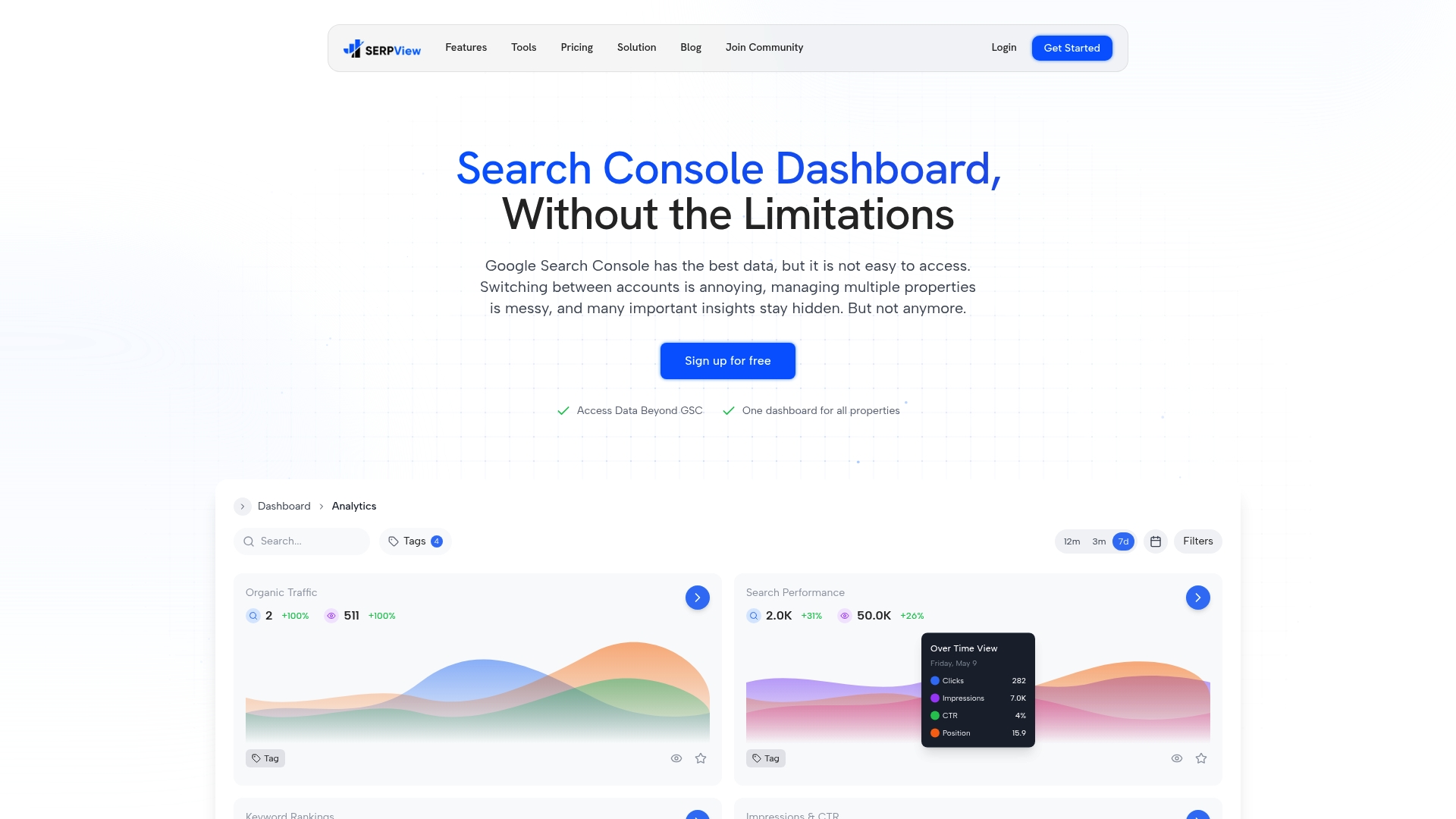
Instead of stitching together a service account, an API connector, and a separate export pipeline, Serpview consolidates GSC data across multiple properties in one dashboard and lets you ask questions directly against a dataset larger than typical API limits. For agencies juggling client properties, that means query discovery, CTR analysis, and cannibalization checks happen in one place instead of three. Teams that need retention beyond the standard 16-month window can extend historical storage through the Extended Storage feature rather than building a BigQuery export from scratch.
Plans start with a Free tier, scale to The Real Pro at $39 per month, or go with Life Time Access for a one-time $99 payment. Try Serpview’s dashboard and run your first chat-based query discovery session today.
Sources
For implementation details beyond this guide, start with Google’s own Search Analytics API reference and the mcp-gsc connector repository for a working local setup. Serpview’s own breakdown of GSC data limitations covers row caps and export gaps in more depth.
- Query your Google Search analytics data | Search Console API | Google for Developers
- mcp-gsc (GSC connector for Claude) — GitHub
- Google Search Console Audit: 2026 Framework + SQL Queries
- Your GSC Data Already Knows Which AI Prompts You’re Visible For
FAQ
What Is GSC Data Used for in a Chat Interface?
GSC data fed into a chat interface gets used to answer specific questions, like which queries have high impressions but low clicks, or which pages compete for the same search term. The chat layer doesn’t create new data, it interprets whatever you export or connect, so answer quality depends entirely on the export method you chose.
How Do You Get a GSC Connector Working?
Start by confirming property access in Google Search Console, then either export a CSV for a quick manual upload or set up a service account for programmatic access through the Search Analytics API. A working example connector pattern, including credential setup, is documented in the mcp-gsc project.
Is Google Search Console Still Actively Updated?
Yes, GSC remains Google’s primary tool for search performance data and continues to receive updates, including the BigQuery bulk export feature used for large-scale historical analysis. Data retention in the standard UI and API stays capped at 16 months, which is why teams needing longer history turn to BigQuery export or a consolidated dashboard.
How Can You Tell if Your GSC Setup Is Missing Data?
Compare a known query’s numbers between the GSC UI and whatever export or connector you’re using. If the totals don’t match, check for row limit truncation, since the API caps requests at roughly 25,000 rows per pull, or check whether low-volume queries are being anonymized and excluded from the count.
Does Serpview Support Chatting With GSC Data?
Serpview includes an AI chat feature built on consolidated GSC data across multiple properties, letting you ask questions directly instead of exporting and re-uploading files. Pricing starts with a Free plan, with The Real Pro at $39 per month and a Life Time Access option at a one-time $99.
Recommended
Ready to unlock your full GSC potential?
SERPView helps you access all your Google Search Console data without limitations. Start your free trial today.
Get Started Free