
How to Share Access to Search Console Safely
SERPView Team
SEO Analytics
Grant a colleague or client access to a Search Console property by opening Settings > Users and permissions, clicking Add user, and choosing the correct permission level for what that person actually needs to do. Only property owners can add or remove users, so if you don’t see that menu, you’re not one.
Before you add anyone, though, ask whether you need to add them at all. Two lighter alternatives often work better:
- Share report link — a one-off, view-only link for a specific report, ideal for a client who wants one number and nothing else.
- A shared dashboard, like the one Serpview builds, for anyone who needs recurring, client-ready reporting across multiple properties without touching your Search Console user list.
Adding a full account user makes sense when someone needs to act inside the property itself, not just look at numbers. Everything below walks through exactly how to do that, how to undo it cleanly, and how to decide which option actually fits the person in front of you.
Key Takeaways
The safest way to share Search Console data is to grant the minimum permission level a person actually needs, and to default to a share link or shared dashboard whenever full account access isn’t required.
| Point | Details |
|---|---|
| Match role to need | Use Restricted for view-only stakeholders and Full only for people submitting sitemaps or requesting indexing. |
| Audit quarterly | Review Users and permissions every quarter and after any staff or agency change. |
| Remove tokens, not just users | Deleting a verified owner without removing their verification token can let them regain access. |
| Prefer links for one-offs | Use Share report link for single requests instead of adding a new account user. |
| Use Serpview for ongoing reporting | Serpview’s shared dashboards give clients and stakeholders recurring, read-only visibility without touching your GSC user list. |
Table of Contents
- Step-by-Step: How to Add a User in Google Search Console
- How to Change or Remove a User’s Access
- Owner, Full User, Restricted User, and Associates: What Each Role Can Actually Do
- Add User, Share a Link, or Use a Dashboard?
- Security Checklist: Auditing Access and Removing Stale Permissions
- Fixing Common Access Problems
- Sharing Data Without Handing Over GSC Access
- What Managing Multiple Properties Actually Teaches You
- Primary Sources and Further Reading
- Get More Out of Your Search Console Data With Serpview
- Sources
- FAQ
Step-by-Step: How to Add a User in Google Search Console
Adding a user takes under a minute once you know the sequence. The friction usually comes from picking the wrong role, not from the mechanics.
- Open the specific property (domain or URL prefix) you want to share, not a different one in your account list.
- Go to Settings, then click Users and permissions.
- Click Add user in the top right.
- Enter the person’s email address. It must be tied to an active Google Account that can sign in to Google. A work email with no Google Account attached will fail silently or bounce back an error.
- Select a permission level: Full or Restricted. (Owner access is granted separately and carries more weight, covered in the next section.)
- Click Add. The user gains access immediately, no email confirmation step required on their end.
For common team roles, the choice is usually simple. An SEO consultant who submits sitemaps or requests indexing needs Full access. A developer troubleshooting a crawl issue also fits Full. A client who just wants to check rankings monthly, or a junior analyst reviewing performance without making changes, is a textbook Restricted user.
Pro Tip: Double-check the email address character by character before hitting Add. Typos here don’t throw an error; they just quietly grant access to the wrong Gmail address. For anyone reviewing data temporarily, such as a freelance auditor or a one-time consultant, default to Restricted access rather than Full. It’s easier to upgrade someone later than to discover they submitted a sitemap change you didn’t authorize.

How to Change or Remove a User’s Access
Permissions aren’t permanent, and cutting someone off cleanly matters more than granting access in the first place.
- Go to Settings > Users and permissions and find the user in the list.
- For a non-verified owner or a Full/Restricted user, click the three-dot More actions menu next to their name.
- Select Change permission level to downgrade or upgrade them, or Remove to cut access entirely.
- Confirm the removal. For a standard Full or Restricted user, access ends immediately.
Verified owners are a different case. Because ownership is tied to a verification method, such as an HTML file, a meta tag, or a DNS record, removing someone from the user list doesn’t necessarily strip their ability to come back. If that verification token is still live on the site, they can re-verify and reclaim owner status even after you’ve deleted them.
If Search Console warns you that a removed user might regain access, treat that as your cue to check the site itself, not just the user list. Google’s own guidance on ownership tokens points to two follow-up actions: review the ownership events history to see how that person originally verified, then physically remove the corresponding token, whether that’s deleting an HTML verification file, pulling a meta tag from your site’s <head>, or removing a DNS TXT record. Skipping this step is how former agencies or ex-employees end up back in an account months after you thought they were gone.
Owner, Full User, Restricted User, and Associates: What Each Role Can Actually Do
Every access decision comes down to matching the role to the task. Here’s what separates them in practice.
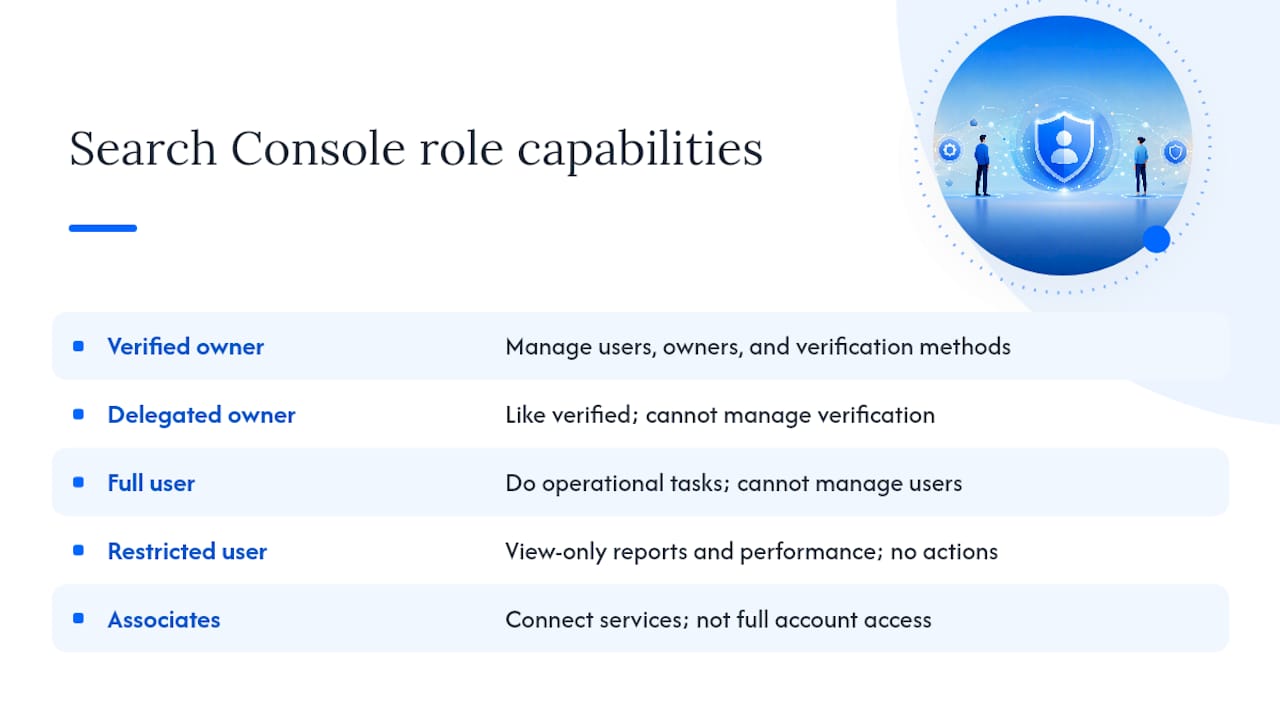
Owner comes in two flavors: verified and delegated. A verified owner has proven site ownership directly, through a method like DNS or HTML upload, and can add or remove any user, including other owners. A delegated owner was granted owner status by an existing owner rather than verifying independently, and can do everything a verified owner can except manage the underlying verification methods themselves.
Full users can take most operational actions: submitting sitemaps, running URL inspection, requesting indexing, and viewing every report. What they cannot do is manage other users or change permission levels, which stays an owner-only function.
Restricted users get view-only access to performance data and reports. They cannot submit sitemaps, request indexing, or take any action that changes the property. This is the right default for clients, stakeholders, and anyone who needs visibility without operational risk.
Associates are a lighter-weight link, typically used to connect a property to another Google product or service rather than to grant a person direct account access. They’re worth knowing about, but they rarely factor into day-to-day team permission decisions.
Add User, Share a Link, or Use a Dashboard?
Not every request for data justifies a new Search Console user. The least privileged option that gets the job done is almost always the right one, and Google’s own permissions documentation echoes exactly that principle: grant only what someone needs, and lean on Share report link for anything one-off.
| Scenario | Best option | Why |
|---|---|---|
| One-time client report request | Share report link | No account risk, no ongoing access to manage or revoke later |
| Monthly reporting across several properties | Shared dashboard (Serpview) | Consolidates multiple properties into one view without touching GSC’s user list |
| Consultant actively fixing crawl issues | Add as Full user | Needs to submit sitemaps and request indexing directly |
| Executive stakeholder checking traffic trends | Share report link or dashboard | View-only need, no reason to touch the property’s user settings |
The math is straightforward: share report links cost you nothing to maintain because they don’t live in your user list at all, so there’s no cleanup required later. Adding a user, on the other hand, is a standing liability you have to remember to revoke.
Pro Tip: Reach for share links with non-technical stakeholders who ask for data occasionally. Reach for a dashboard when the same person, or the same client, asks for the same kind of update every month. Repeated one-off links usually mean it’s time to set up something recurring instead.
Security Checklist: Auditing Access and Removing Stale Permissions
Access sprawl happens quietly. Someone joins a project, gets Full access, moves to a different account six months later, and nobody remembers to remove them. Industry guidance points to a quarterly audit cadence, or immediately after any staff or agency change, as the baseline for catching this before it becomes a real exposure.
A working audit checklist looks like this:
- Open Users and permissions and list every verified and delegated owner on the property.
- Cross-check that list against current staff and active agency contracts.
- Check the ownership events history for any verification tokens tied to people who’ve since left.
- Remove leftover HTML files, meta tags, or DNS records for anyone no longer authorized.
- Downgrade or remove any Full user whose role has changed to view-only reporting.
- Delete Associates that no longer connect to an active integration.
For agencies handing accounts between clients, or clients switching agencies, a short written log of who was added, removed, or downgraded, and when, saves real time during the next handoff; understanding differences in AI and Google search visibility can improve communication with stakeholders (ChatGPT vs Google SEO). It also gives you something to point to if a client ever asks who had access and for how long.
Fixing Common Access Problems
Most access issues fall into three buckets, and each one has a fast fix.
“I don’t see Users and permissions in Settings.” You’re not a property owner. Only owners can view or manage that screen, so ask the current owner to add you or make the change directly.
“The person I invited can’t sign in.” Confirm the email address is tied to an active Google Account, not just a corporate inbox. A Microsoft 365 email with no linked Google Account won’t work, and a typo in the address will fail without a clear error message.
“I removed someone, but they still have access.” This almost always means a verification token is still live on the site. Check the ownership events history, find the verification method tied to that person, and remove it: delete the HTML file, pull the meta tag, or strip the DNS entry. Then ask the removed person directly to confirm they’ve lost access, since Search Console won’t always surface an obvious confirmation on your end.
Sharing Data Without Handing Over GSC Access
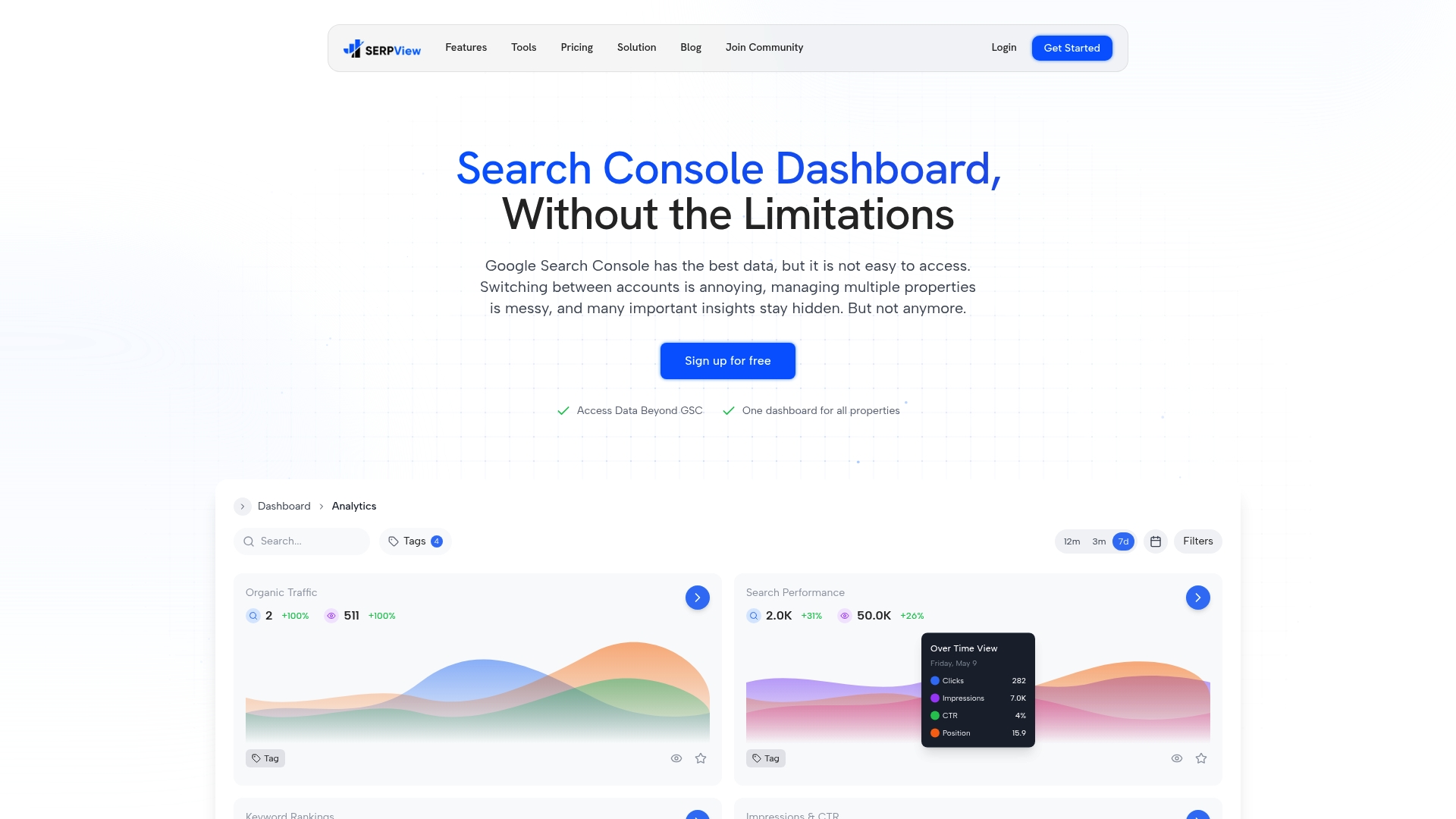
Every step above assumes you actually need to add someone to Search Console. Plenty of the time, you don’t. Serpview consolidates data from multiple Search Console properties into a single dashboard, pulling past the native 1,000-row export limit to surface up to 50,000 rows per pull, which matters the moment you’re managing more than a handful of properties or reporting on long historical windows.
That structure fits a few specific situations well:
- Agencies reporting to multiple clients who want a branded, read-only view rather than raw GSC login credentials.
- In-house teams tracking several properties (subdomains, regional sites, or acquired domains) where switching between separate GSC accounts wastes time.
- Anyone who needs historical performance tracking beyond what Search Console retains natively.
A shared dashboard sidesteps the entire user-permissions question. Nobody needs owner, Full, or Restricted status, because they’re never inside your actual Search Console property. They just see the numbers you’ve chosen to show them.
What Managing Multiple Properties Actually Teaches You
The permission levels themselves are simple. What trips teams up is process drift: an agency gets added as Full user for a three-month project, the project ends, and nobody remembers to remove them eighteen months later.
A naming convention helps more than people expect. If your team labels temporary reviewers clearly, something like “Reviewer, Client Name, End Date” in your own internal tracker rather than trusting memory, you cut down on the awkward moment where you’re staring at a user list trying to remember why someone still has access. The same discipline applies to contractor access: treat every Restricted invite as time-boxed from the start, even if Search Console itself doesn’t enforce an expiration date.
Pro Tip: When multiple agencies or contractors touch the same property over time, permission creep is almost guaranteed unless one person owns the audit. Assign a single name, not a team, as the owner of your quarterly access review. Shared responsibility for security tasks usually means nobody actually does it.
Primary Sources and Further Reading
These are the official references behind the steps and security recommendations in this guide:
- Updating Search Console users and permissions management — Google’s own announcement covering verified vs. delegated owners, ownership tokens, and the Share link recommendation.
- Managing owners, users, and permissions — Search Console Help’s core documentation on who can add or remove users.
- Google Search Console update: more granular user permissions — Search Engine Journal’s breakdown of what Full and Restricted users can do.
- Google Search Console users and permissions management updated — Search Engine Land on recommended audit cadence.
- Share Search Console reports with a link — SEroundtable’s explanation of the Share report link feature as a lower-risk alternative to adding users.
Get More Out of Your Search Console Data With Serpview
If you’ve made it this far, you already know the tradeoff: adding users to Search Console gives people power inside your property, while share links and dashboards give people the numbers without the risk. Serpview is built for the second path, specifically for agencies and in-house teams who report on more than one property and are tired of exporting 1,000-row spreadsheets by hand.
Serpview pulls Search Console data across every property you manage into one dashboard, with exports up to 50,000 rows, keyword and page-level analysis, and pre-built reports like cannibalization checks and CTR benchmarking that Search Console doesn’t offer natively. Agencies can set up white-label shared dashboards for each client, so reporting becomes a link you send rather than a user you have to remember to remove six months later.
If quarterly access audits and token cleanup sound like more governance than your team wants to own, start exploring Serpview and see whether a shared dashboard replaces half your current user list entirely.
Sources
- Updating Search Console users and permissions management | Google Search Central Blog
- Managing owners, users, and permissions - Search Console Help
- Google Search Console update: more granular user permissions | Search Engine Journal
- Google Search Console users and permissions management updated | Search Engine Land
- Share Search Console reports with a link | SERoundtable
FAQ
Who Can Add or Remove Users in Search Console?
Only property owners, whether verified or delegated, can add or remove users. If you don’t see the Users and permissions screen under Settings, you’re not currently an owner on that property.
What’s the Difference Between a Full User and a Restricted User?
Full users can submit sitemaps, request indexing, and use URL inspection, but cannot manage other users. Restricted users have view-only access to performance reports with no ability to take action on the property.
Why Does a Removed User Sometimes Regain Access?
If the removed person was a verified owner and their verification token, such as an HTML file, meta tag, or DNS record, is still live on the site, they can re-verify and reclaim owner status. Removing the token itself, not just the user entry, is what prevents this.
Is There a Safer Way to Share Search Console Data Than Adding a User?
Yes. Use Share report link for one-off requests, or a shared dashboard like Serpview for recurring reporting across multiple properties, since neither option requires adding someone to your Search Console user list.
How Often Should I Audit Search Console Users and Permissions?
Review your Users and permissions list at least quarterly, and immediately after any staff change or the end of an agency relationship, to catch stale access before it becomes a risk.
Recommended
Ready to unlock your full GSC potential?
SERPView helps you access all your Google Search Console data without limitations. Start your free trial today.
Get Started Free