
Google Update Annotations: Templates and a 1,000 Row Fix for Agencies
SERPView Team
SEO Analytics
Use annotations to timestamp every site change and confirmed Google update on the same performance chart, so patterns become visible instead of assumed. Google Search Console and Google Analytics/GA4 both support this, and a consolidated tool like SERPView extends it across properties. The rest of this guide covers how to add annotations, what to record, timing rules for judging update impact, and templates your whole team can reuse.
TL;DR:
- Mark Google update rollout windows accurately to differentiate between short-term ranking volatility and sustained traffic impacts that can take months to recover.
- Use standardized templates for annotations, including deploys, content updates, campaigns, and confirmed updates, to ensure consistent tracking across multiple properties.
- Limit annotation access to designated team members to prevent duplication and confusion, and periodically export notes to preserve historical context during platform migrations.
- Analyze traffic and ranking data only after the full update period, waiting at least one week to assess whether recovery is ongoing or if deeper content or quality issues exist.
- Use consolidated tools like SERPView to overlay annotations across multiple sites and retain long-term performance history beyond native platform limits.
Table of Contents
- What Google Update Annotations Are and Why They Matter
- How to Add and Manage Annotations in Search Console
- Using Annotations to Judge Google Algorithm Update Impact
- Annotation Templates You Can Copy Right Now
- Where Annotations Live: Search Console, GA4, and Dashboards
- Common Annotation Limits and How to Avoid Them
- An Editor’s Rules for Annotating Update Windows
- Track Every Update and Change in One Place With SERPView
- Sources
- FAQ
What Google Update Annotations Are and Why They Matter
An annotation is a timestamped note attached to a performance chart, marking exactly when something happened. That “something” could be a code deploy, a canonical fix, a content rewrite, a campaign launch, or a confirmed Google algorithm change. Without that marker, you’re left staring at a traffic dip trying to remember what changed three weeks ago.
The real value of annotations in SEO is converting a hunch into a testable correlation. Instead of saying “traffic dropped, probably an update,” you can check whether the drop lines up with a rollout date or with your own site change. That distinction changes what you do next.
Events worth documenting consistently include:
- Code deploys and template changes
- Canonical tag fixes or URL structure changes
- Major content edits or page consolidations
- Marketing campaign launches
- Confirmed Google core or spam updates
- Third-party outages or crawling issues
How to Add and Manage Annotations in Search Console
Search Console added a native custom annotations feature that lets you attach contextual notes directly to performance charts, tied to specific dates. Here’s how to use it well.
- Open the Performance report and locate the annotation icon on the date timeline.
- Click to add a new annotation, then enter a concise title, ideally under 60 characters.
- Write a short, descriptive note explaining what changed and why it matters.
- Set the date or date range the event covers.
- Tag the affected pages, queries, or site sections if the interface allows it, so filtering stays clean later.
- Save, then confirm the marker appears on the chart at the right point.
Editing works the same way. Click an existing annotation to update the note, hide it from view without deleting it, or export it alongside your report for stakeholders. If you’re pulling data through the Search Console API, check the current developer documentation for annotation endpoints, since programmatic access can lag behind UI features.
Governance matters here. Give create and edit rights to a small group, not the whole team, so charts don’t fill up with duplicate or contradictory notes.
Pro Tip: Write annotation titles as if a new hire will read them in six months with zero context. “Fixed canonical loop on /blog/” beats “canonical fix.”
Using Annotations to Judge Google Algorithm Update Impact
Google’s own guidance says to wait at least one full week after a core update rollout finishes before drawing conclusions. Rollouts often ship in stages, and judging impact mid rollout means judging an incomplete picture.
Two different signals need separate treatment. Ranking volatility is short-term position movement, often noisy and self-correcting within days. Traffic impact is the real shift in clicks, impressions, or conversions that shows up in GA4 or Search Console once the dust settles. Annotate the update’s start and end dates, then compare both signals against that window instead of reacting to day-one panic.
During the March 2026 core update cycle, SE Ranking’s volatility data recorded very high URL shift rates among top results, with a notable share of top-10 pages dropping out of the top 100 entirely. That scale of movement is exactly why marking the update window on your own charts matters. Without it, a site-specific dip looks identical to broad market turbulence.
Recovery after a substantive negative hit often takes months, particularly when the fix involves real E-E-A-T improvements rather than a quick technical patch. Small positional wobbles rarely justify drastic action. A few things help you decide which category you’re in:
- Compare your annotated update window against third-party volatility reports before assuming you were singled out.
- Check whether the affected pages share a common quality issue, not just a common keyword.
- Weight sustained traffic change over single-week ranking swings.
- Revisit the annotation a month later to see if the pattern held or reversed.
Annotation Templates You Can Copy Right Now
Standardizing annotation text across a team saves hours during update season, because everyone stops guessing at format. A few working templates:
- Deploy annotation: Title: “Deploy: nav restructure.” Description: “Migrated main nav to mega-menu, affects /category/ pages.” Tags: deploy, navigation. Owner: dev lead.
- Content refresh annotation: Title: “Content refresh: pricing guide.” Description: “Rewrote intro, added 2026 pricing table, updated FAQs.” Tags: content, refresh. Owner: content lead.
- Campaign launch annotation: Title: “Campaign: spring promo live.” Description: “Paid and email push to /promo/, expect referral traffic spike.” Tags: campaign. Owner: marketing.
- Suspected update impact annotation: Title: “Core update rollout window.” Description: “Google confirmed rollout start/end dates; monitoring top landing pages.” Tags: google-update. Owner: SEO lead.
Keep the title, description, tags, and owner fields identical every time. Consistent tags are what let you filter annotations across five properties at once instead of scrolling through each one separately.
Where Annotations Live: Search Console, GA4, and Dashboards
Search Console’s native annotations attach to the Performance chart only, scoped to a single property. GA4 annotations attach to line graphs across whichever metric you’re viewing, and GA4 distinguishes user-created notes from system-generated ones, which can’t be edited or deleted, so don’t mistake an automated flag for your own note.
Neither platform lets you overlay confirmed update dates automatically or aggregate more than one property at a time. That’s where a consolidated dashboard closes the gap. SERPView’s Custom Annotations feature lets you:
- Mark update windows once and view them across every connected property
- Pull historical performance data beyond the 1,000 row limit native to Search Console
- Keep annotation history alongside years of stored search data instead of losing older context
- Export annotated reports for client or stakeholder review
Common Annotation Limits and How to Avoid Them
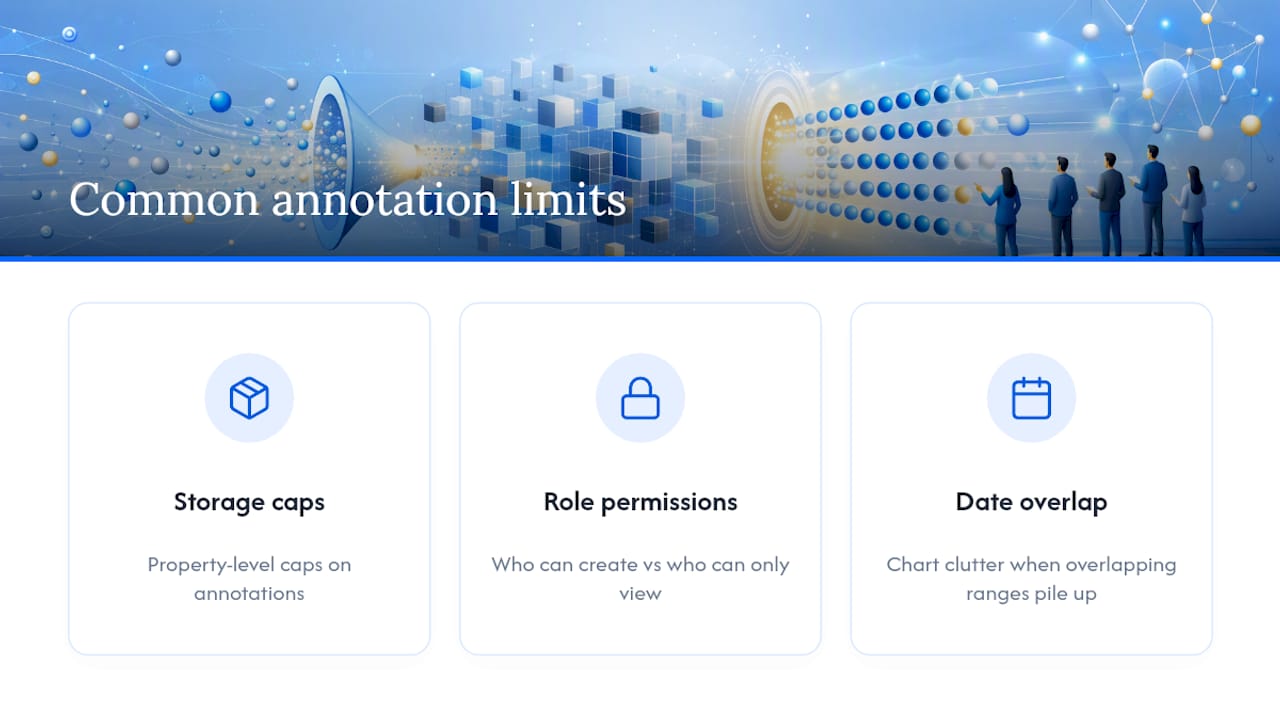
Every platform imposes some structure: property-level caps on how many annotations you can store, role-based restrictions on who can create versus only view them, and cluttered charts when overlapping date ranges pile up.
The recurring pitfalls are inconsistent naming, confusing system annotations for user ones, and losing notes during an export that didn’t carry annotation data with it. Fix this with a naming convention everyone follows, one designated owner per site keeping the record clean, and a periodic export so annotation history survives a platform migration.
Pro Tip: Export your annotation list quarterly, even if nothing seems urgent. The one time you need six-month-old context is exactly when native tools have already trimmed it.
An Editor’s Rules for Annotating Update Windows
My own checklist runs in three windows. In the first 0 to 48 hours after a confirmed update, I annotate the rollout dates and nothing else. No conclusions yet. At the one week mark, I check ranking volatility against traffic data and annotate whichever direction it moved. Between one and three months out, I annotate whether recovery held or reversed.
The heuristic that saves the most time: wait when the shift is small and isolated to a few queries, act only when traffic drops and the affected pages share a real quality problem. One annotated deploy date once saved a client from blaming a core update for what was actually a broken canonical tag shipped the same week.
— Utsav Chopra
Track Every Update and Change in One Place With SERPView
SERPView gives you what native Search Console annotations can’t: one dashboard where every property’s updates, deploys, and campaign notes sit on the same timeline, without the 1,000 row cutoff that forces you to choose which data to keep.
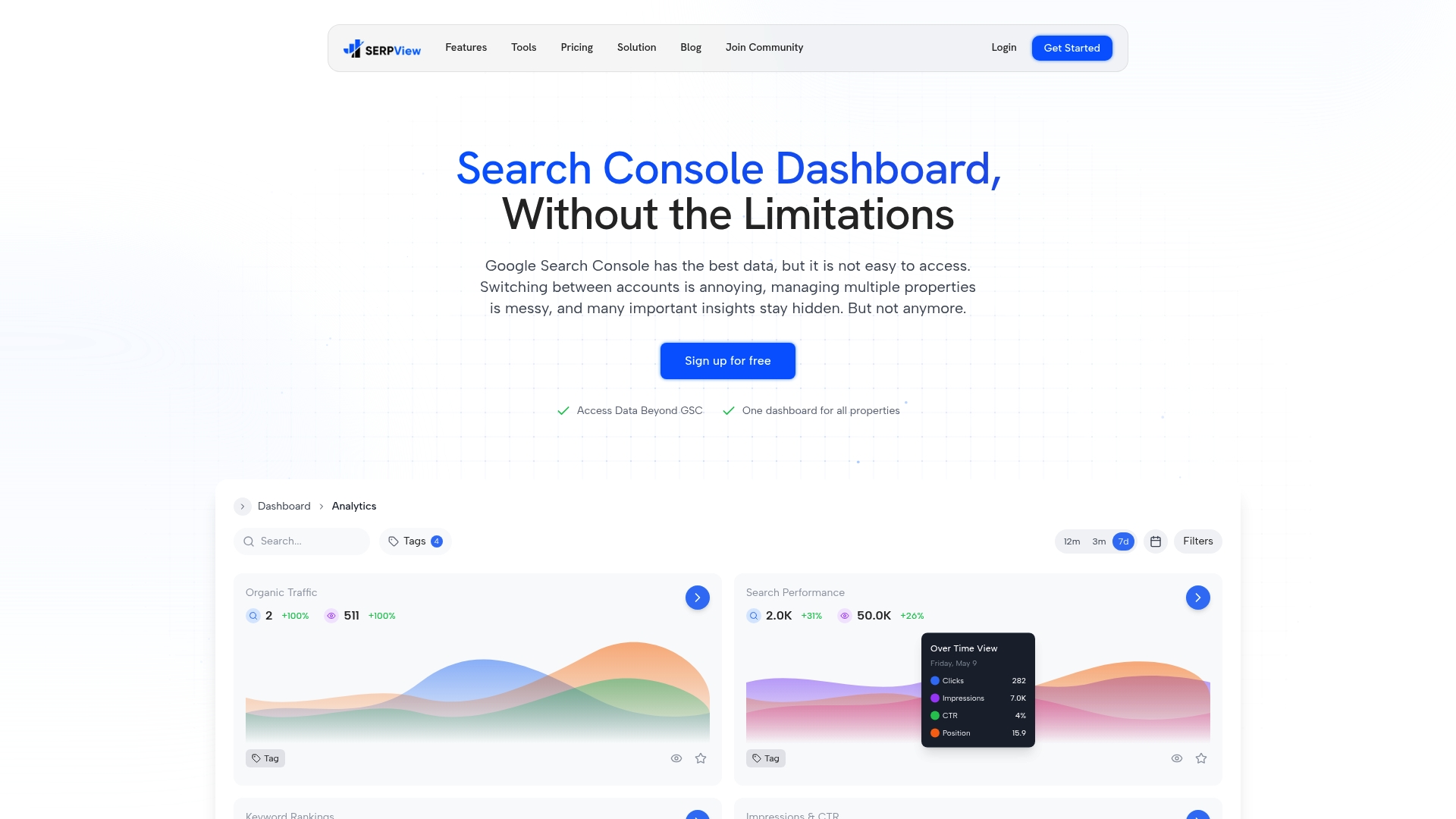
The Custom Annotations feature lets agencies and in-house teams managing multiple sites mark a Google update once and see its effect across every connected property, backed by extended historical storage for teams that need years of context, not months. Reports export cleanly for client reviews, so nothing gets lost between tools. Start on the Free plan to test annotation tracking on your own properties, or move to a paid plan for full multi-property access.
Sources
For deeper technical detail, review Google’s own Search Updates guidance, the Search Console custom annotations announcement, GA4’s annotation support documentation, and this algorithm explainer for broader update mechanics.
- Adding context to your Search Console data with custom annotations — Google Search Central blog
- Add annotations in Google Analytics — Google Support
- Ppc
FAQ
Where Do I Find Annotations in Google Search Console?
Annotations appear directly on the Performance report’s date timeline, accessed through an icon near the chart. Click it to add, edit, hide, or export a note tied to a specific date or range, using the custom annotations feature Google added to Search Console.
What Is Happening With Google Right Now?
Google rolls out multiple confirmed updates each year, including core updates that shift rankings across entire categories of sites. The best way to track what’s currently affecting your traffic is annotating confirmed rollout dates and comparing them against your own performance charts rather than relying on general chatter.
Can You Give an Example of an Annotation?
A typical annotation might read: title “Deploy: nav restructure,” description “Migrated main nav to mega-menu, affects /category/ pages,” dated to the deploy day, and tagged “deploy.” The same format works for marking a confirmed Google core update window on the same chart.
What Was Google’s Latest Update?
Google runs periodic core and spam updates throughout the year, with rollout dates confirmed on its own status channels. The March 2026 core update, for instance, produced measurable volatility, with SE Ranking data showing a 79.5% URL shift rate among top 3 results, which is why annotating the exact rollout window matters more than reacting to day-one noise.
How Long Should I Wait Before Judging an Update’s Impact?
Google recommends waiting at least one full week after a rollout finishes before drawing conclusions, since updates often ship in stages. Recovery after a significant negative impact can take months if it requires substantive content or authority fixes, though timelines aren’t guaranteed.
Recommended
Ready to unlock your full GSC potential?
SERPView helps you access all your Google Search Console data without limitations. Start your free trial today.
Get Started Free