
Fix the 1,000 Row Blind Spot in Index Coverage Reporting for Agencies
SERPView Team
SEO Analytics
The Page Indexing report (still widely called index coverage reporting) shows you exactly which URLs Google has indexed and lists a specific reason for every URL it hasn’t. Your first move on any site should be opening the URL Inspection tool on your handful of critical pages and confirming they’re indexed, then working down the “Error” statuses before touching anything Google labels as expected. Everything else in this report is triage, not emergency.
TL;DR:
- The Page Indexing report shows Google’s indexed URLs and reasons for non-indexed pages, with sample limits of 1,000 URLs per status, not a comprehensive list.
- Routine checks are most valuable for larger sites over 500 pages, especially after migrations, significant content updates, or traffic drops, with monthly monitoring recommended.
- “Discovered not indexed” pages often require structural fixes to crawl budget, while “Crawled not indexed” pages usually need content improvements or prioritization.
- Many non-indexed statuses are expected and do not require action, but issues like server errors, noindex tags, or redirect problems need urgent fixes.
- Third-party tools like Serpview can aggregate indexing data across multiple sites and provide longer historical tracking beyond Search Console’s limitations.
Table of Contents
- What the Page Indexing Report Actually Shows You
- When Should You Check the Page Indexing Report?
- Every “Not Indexed” Status and the One Action Each One Needs
- Why “Indexed” Doesn’t Always Mean Job Done
- Closing the Loop: URL Inspection, Sitemaps, and Validate Fix
- A Fast Troubleshooting Checklist for Indexing Problems
- The Reporting Limits Every SEO Should Plan Around
- What Fifteen Years of Indexing Fires Have Taught Me
- Where SERPView Fits Once You Outgrow Native Reporting
- Sources
- FAQ
What the Page Indexing Report Actually Shows You
Open the report inside Google Search Console and you’ll see a line chart split into two tracks: indexed URLs and not-indexed URLs, plotted over roughly the last three months. That chart is a trend line, not a real-time counter. Google crawls, evaluates, and updates these numbers on its own schedule, and a change you made on Tuesday might not register until the following week.
Below the chart sits a table that breaks the not-indexed total into specific reason categories, like “Crawled - currently not indexed” or “Excluded by noindex tag.” Click any row and Search Console hands you a sample list of affected URLs, each of which you can open directly in the URL Inspection tool for a deeper look at crawl and indexing signals. This drill down is where the report earns its keep, since a status label alone rarely tells you enough to fix anything.
Four filter views sit above the data, and picking the right one changes what you’re actually diagnosing:
- All known pages: Every URL Google has ever discovered on your domain, submitted or not. Use this for the widest possible health check.
- All submitted pages: Only URLs you’ve explicitly pushed through a sitemap. This is the cleanest view for checking whether your priority content made it in.
- Unsubmitted pages only: URLs Google found through crawling or links, but that never appeared in a sitemap. A large number here often points to orphaned pages or a sitemap that needs updating.
- A specific sitemap: Narrows everything to one submitted sitemap, which is useful when you manage separate sitemaps for blog content, product pages, or a subdomain.
The report’s biggest catch is one most SEOs discover the hard way: Google caps the example URL list at 1,000 entries per status, and that sample isn’t guaranteed to be exhaustive even when your total count is lower than 1,000. If “Crawled - currently not indexed” shows 4,200 URLs, you’ll only ever see a slice of them in the interface. That’s precisely why tracking the trend over time, rather than treating any single day’s snapshot as gospel, gives you a far more reliable read on what’s actually happening to your site’s indexing.
Google refined this report a few years back specifically to fix a related problem: the old generic “crawl anomaly” bucket told you almost nothing useful. Today’s reasons map much more precisely to actual causes, which is a big part of why triage by status label now works as well as it does.
When Should You Check the Page Indexing Report?
Not every site needs to live in this report. Google’s own guidance suggests that sites with fewer than roughly 500 pages usually don’t get much value from it. If your site is that small, the site:yourdomain.com search operator combined with spot-checking key pages through URL Inspection will tell you what you need to know faster than parsing a coverage table built for scale.
Once your site crosses that rough threshold, or once you’re managing indexing across multiple properties for clients, a routine cadence matters more than any single deep dive. Here’s the schedule that holds up across most agency and in-house workflows:
- Monthly baseline check. Scan the not-indexed trend line and reason breakdown once a month at minimum, looking for slow creep rather than sudden spikes.
- After every migration or major release. URL structure changes, CMS platform swaps, and large content pushes are the single most common cause of indexing chaos, and you want eyes on the report within days, not weeks.
- Immediately after any traffic or ranking drop. If organic traffic falls off a cliff, check whether pages quietly dropped out of the index before you start rewriting content or blaming an algorithm update.
Remember that updates to this report can lag by several days, so a fix you shipped yesterday won’t show clean data yet. Give it time before you panic.
Beyond the calendar, certain signals should trigger an out-of-cycle check regardless of when your last review happened: a sudden spike in “Discovered - currently not indexed” counts, a new message in your Search Console notifications, or organic sessions dropping in Google Analytics without an obvious seasonal explanation.
Pro Tip: Set a recurring calendar reminder tied to your sitemap submission date, not the first of the month. Reports drift out of sync with reality fast enough that “whenever I remember” isn’t a cadence, it’s a gap waiting to happen.
Every “Not Indexed” Status and the One Action Each One Needs
Not every non-indexed URL is a problem. Some statuses are Google working exactly as designed. Sorting each label into one of three buckets, before you touch a single line of code, saves hours of wasted effort:
- Expected: no action needed, this is Google behaving correctly
- Investigate: audit first, the fix isn’t obvious without more context
- Fix immediately: this is a bug, and it’s costing you visibility right now
Here’s how the common reason labels sort into those buckets, with the one-line move for each.
Discovered - currently not indexed. Google knows the URL exists but hasn’t crawled it yet, usually because of crawl budget constraints or a low-priority queue position. Bucket: Investigate. For a handful of pages, patience is the right call. For a large cluster, crawl budget is the real culprit, and the fix is structural: tighten internal linking, prune thin pages elsewhere on the site, and confirm your sitemap isn’t burying priority URLs under thousands of low-value ones.
Crawled - currently not indexed. Google visited the page and decided not to index it, almost always a content-quality signal rather than a technical one. Bucket: Investigate, often Fix immediately for priority pages. Industry guidance is consistent here: differentiate the content, add unique data or internal links pointing to it, then submit a Request Indexing once the page is genuinely stronger. Don’t just resubmit the same thin page and expect a different result.
Duplicate, Google chose different canonical than user. Google found a URL you didn’t mark as canonical and decided another version was the better representative. Bucket: Expected, unless the wrong page won. Check the canonical tag with a tool like Serpview’s canonical tag checker if the version Google picked isn’t the one you wanted ranking.
Alternate page with proper canonical tag. This is Google confirming your canonicalization is working exactly as intended. Bucket: Expected, no action. Seeing this label climb after a site migration is often a good sign, not a bad one.
Excluded by ‘noindex’ tag. The page carries a noindex directive Google is respecting. Bucket: Expected if intentional, Fix immediately if not. Audit this list after any CMS update or staging-to-production push. Accidental noindex tags surviving a deployment are one of the most common self-inflicted indexing disasters agencies encounter.
Blocked by robots.txt. Your robots.txt file is telling Google not to crawl the URL at all. Bucket: Investigate. A blocked URL can still get indexed based on external links pointing to it, just without any content description, which usually looks worse in search results than not appearing at all.
Server error (5xx). Your server failed to respond correctly when Google tried to crawl. Bucket: Fix immediately. This is almost never intentional and often points to hosting capacity issues or a misconfigured server response, something MDN’s documentation on HTTP status codes can help you diagnose alongside your hosting logs.
Not found (404). The page doesn’t exist and Google knows it. Bucket: Expected for genuinely removed content, Fix immediately if the URL should be live. Check whether internal links still point to the dead URL; if they do, that’s the actual bug, not the 404 itself.
Redirect error. Google hit a redirect it couldn’t follow cleanly, often a chain that’s too long or a loop. Bucket: Fix immediately. Redirect chains longer than two or three hops routinely confuse crawlers and waste crawl budget on large sites.
Soft 404. The page returns a 200 status code but Google’s algorithm decided the content looks like an error page (thin, empty, or a generic “nothing here” message). Bucket: Investigate. Either return a real 404/410 status if the page should be gone, or beef up the content if it shouldn’t be.
Prioritizing across this list comes down to one formula: impact equals pages affected multiplied by business importance. A hundred thin tag pages sitting in “Crawled - currently not indexed” matter far less than five product pages with the same label. Sort your fix queue by that math, not by which status sounds scariest.
Why “Indexed” Doesn’t Always Mean Job Done
An “Indexed” status confirms Google added the URL to its index. It says nothing about whether the page is showing up correctly, ranking well, or displaying the content you intended. Plenty of technically indexed pages are quietly underperforming for reasons the coverage report won’t spell out on its own.
A few warning patterns show up often enough to watch for specifically:
- Indexed, though blocked by robots.txt: Google indexed the URL based on external signals like inbound links, without ever crawling the actual content, so the snippet in search results is often generic or missing entirely.
- Indexed without content: the page returned a valid response, but Google’s renderer found essentially nothing there, frequently a JavaScript rendering failure or a page that loads content after the crawler stops waiting.
- Structured data errors on an indexed page: the page is live and indexed, but a broken schema markup means it’s missing out on rich results, star ratings, or FAQ snippets in the search listing.
- Content that “vanished” between versions: a page indexed months ago now serves different, thinner, or entirely unrelated content after a redesign, and Google hasn’t recrawled it yet to notice the change.
If you want a page removed from the index intentionally, the noindex meta tag is the durable fix, while the URL removal tool in Search Console only hides it temporarily while the underlying signal catches up. For content that’s indexed but showing incorrectly, a Request Indexing after you’ve fixed the rendering or content issue is usually faster than waiting for Google’s natural recrawl cycle. Either way, indexed status is a floor, not a finish line.
Closing the Loop: URL Inspection, Sitemaps, and Validate Fix
Three tools work together here, and mixing up their jobs is one of the most common workflow mistakes: URL Inspection tells you the state of one specific URL right now, the Sitemaps report tells you the ratio across your whole submitted set, and Validate Fix tracks whether a bulk issue you already flagged is actually resolving.
Use URL Inspection when you’re chasing a single page. Use the bulk report filters when you’re diagnosing a pattern across dozens or thousands of URLs. Reaching for the wrong one wastes time either way.
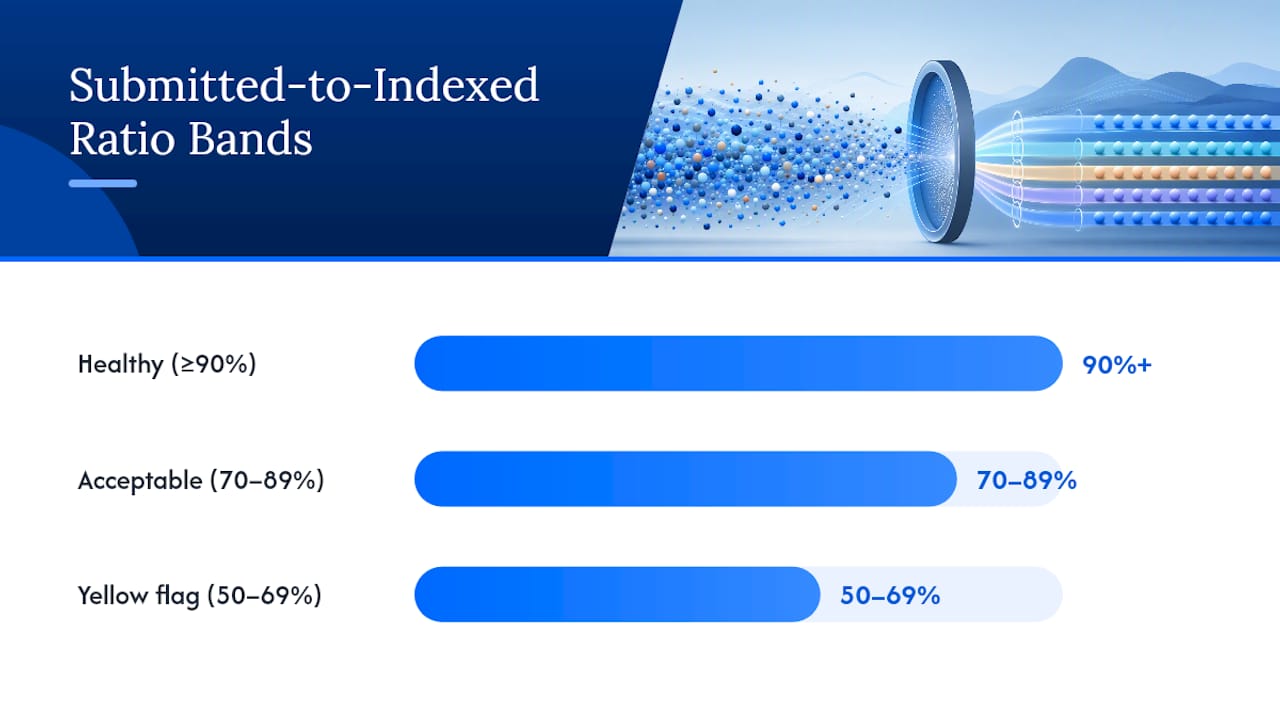
The Sitemaps report shows Submitted and Indexed counts side by side, and the ratio between them tells you more than either number alone. Guidance from practitioner analysis puts a Submitted to Indexed ratio of 90% or higher in healthy territory, 70 to 89% as acceptable depending on how many exclusions are deliberate, and 50 to 69% as a yellow flag that warrants a real audit. Segmenting sitemaps by content type, whether that’s blog posts, product pages, or category pages, makes it much faster to spot exactly which section is dragging the ratio down.
The actual workflow for fixing and confirming an issue runs in a specific order:
- Inspect the affected URL to see the exact status Google currently has recorded.
- Fix the underlying cause, whether that’s a canonical tag, a noindex directive, thin content, or a server error.
- Request indexing through URL Inspection to prompt a recrawl, and resubmit the sitemap if the issue affected multiple URLs at once.
- Click Validate Fix on the corresponding issue in the coverage report to open a tracking window.
- Wait for the audit window to run, checking back over the following days as Google reports progress.
One distinction trips up more SEOs than it should: Validate Fix tracks whether Google now sees the issue as resolved; it does not itself trigger a faster recrawl. Request Indexing and sitemap resubmission are the actual recrawl mechanisms, and both are still subject to Google’s internal crawl quotas. Clicking Validate Fix on a page you haven’t actually fixed just wastes an audit cycle.
Pro Tip: Don’t click Validate Fix the same day you make a change. Give Google at least 48 to 72 hours to crawl the updated page first, otherwise you’re just confirming the old, broken version and the audit window resets for nothing.
A Fast Troubleshooting Checklist for Indexing Problems
When indexing numbers move in the wrong direction, working through a fixed sequence beats guessing. Run these checks in order:
- Check robots.txt first. A single misplaced disallow rule after a deploy can block an entire directory, and it’s the fastest thing to rule out.
- Pull your server and crawl logs. Look for spikes in 5xx responses or unusual latency that would explain Googlebot getting turned away.
- Search your codebase for accidental noindex tags. Staging environments that push noindex live in production are a recurring failure mode, especially after a CMS or theme update.
- Trace your redirect chains. Anything longer than two hops should get flattened to a single, direct redirect.
- Audit canonical tags across the affected section. A canonical tag pointing to the wrong URL, or pointing nowhere at all, will quietly suppress indexing on otherwise fine pages.
- Assess actual content quality on flagged pages. Thin, duplicate, or auto-generated content is the single biggest driver of “Crawled - currently not indexed” at scale.
- Clean up your sitemap. Remove 404s, redirects, and noindexed URLs from your sitemap file so you’re not submitting broken signals to Google in the first place.
Escalate to engineering when the cause is server-side (persistent 5xx errors, rendering failures, hosting capacity), and keep it in the SEO team’s lane when it’s content, canonical, or metadata related.
The right triage flow depends on how the problem showed up. A sudden overnight drop points toward a deployment error: check robots.txt and noindex tags within the hour. Slow, creeping under-indexation over weeks points toward a content-quality or crawl-budget problem: that calls for a content audit and internal linking review, not a frantic afternoon of code changes.
| Symptom | Most likely cause | First action |
|---|---|---|
| Sudden index count drop overnight | Deployment error, accidental noindex | Check robots.txt and noindex tags immediately |
| Slow decline over weeks | Content quality, crawl budget | Audit content and internal linking structure |
| High “Discovered, not indexed” count | Crawl budget constraints | Trim low-value pages, strengthen internal links |
| Rising 5xx errors | Server or hosting capacity issue | Escalate to engineering, check server logs |
| Submitted/Indexed ratio falling | Sitewide quality or structural issue | Segment by sitemap section to isolate the cause |
The Reporting Limits Every SEO Should Plan Around
The 1,000-URL example cap isn’t a bug, it’s a built-in ceiling on how much raw detail the interface will ever hand you, and Google is explicit about it in the report’s own documentation. On a site with tens of thousands of pages, that cap means you’re always looking at a sample, never the full list, even when the total count feels manageable.
Reporting lag compounds the problem. Data in this report can trail real crawl activity by several days, so a coverage chart is closer to a delayed photograph than a live feed. That combination, sampling plus lag, is exactly why a single day’s snapshot tells you less than a trend line does. A count that ticks up one day and down the next is noise; a count that climbs steadily for three weeks straight is a signal worth acting on.
A few habits close most of that gap in practice:
- Export filtered data regularly. Pulling a CSV by sitemap and by reason on a set schedule turns Search Console’s sampled snapshots into a dataset you actually control.
- Build historical retention yourself. Search Console’s own history window is limited, so if you want to compare this quarter’s indexing health against last year’s after a major site change, you need your own archive.
- Set alerts on meaningful thresholds, not every fluctuation, so a real spike in “Discovered - currently not indexed” doesn’t get lost in daily noise.
- Track the Submitted to Indexed ratio over time, not as a single number, since the trend line catches sitewide problems long before a raw count does.
This is precisely the gap third-party tooling exists to close. Serpview’s indexing report feature pulls indexed-page data across multiple properties into one place, which matters most for agencies juggling several client sites where checking each one natively would mean logging into a dozen separate Search Console accounts. For a deeper look at exactly where native Search Console reporting runs into walls, Serpview’s breakdown of GSC’s data limitations is worth a read before you decide whether your current export process is actually sufficient.
What Fifteen Years of Indexing Fires Have Taught Me
Most teams treat the Page Indexing report as a monthly glance rather than a working instrument, and that’s the gap that costs them. A proper routine looks like a weekly five-minute scan of the trend chart for anything moving in the wrong direction, paired with a monthly deep dive into the reason breakdown and Submitted to Indexed ratios per sitemap. Anything less, and you find out about a problem from a client’s traffic dashboard instead of your own monitoring.
The most expensive mistake I see isn’t a missed technical fix. It’s reacting to statuses that were never actually errors. Teams burn hours “fixing” a healthy canonicalization signal or panicking over “Discovered - currently not indexed” on pages that were never meant to rank in the first place, like faceted navigation URLs or internal search results pages. That energy belongs on the handful of statuses that genuinely represent lost visibility: server errors, accidental noindex tags, and redirect chains nobody meant to create.
The second mistake is treating this report as a standalone dashboard instead of one layer in a stack. Index coverage tells you what got into Google’s index. It says nothing about rankings, click-through rates, or whether the traffic those indexed pages generate is worth anything. The report earns its place when you cross-reference it against performance data, not when you stare at it in isolation hoping the numbers trend upward on their own.
If there’s one habit worth adopting above the rest, it’s resisting the urge to treat every red number as a fire. Sort the bucket first. Fix what’s broken. Leave what’s working alone.
— Utsav Chopra
Where SERPView Fits Once You Outgrow Native Reporting
Search Console does the diagnostic work well for a single property, but the moment you’re managing indexing health across several sites, or need more than a 1,000-URL sample to spot the real pattern, its native interface starts working against you. There are tools built specifically for that stretch: they consolidate Search Console data across multiple properties into one dashboard, pull more rows than the native cap, and retain historical data far longer than Search Console’s own window allows.
That combination matters most for two groups: agencies tracking indexing health across a roster of client sites without logging into each account separately, and in-house teams on large sites who need to compare this year’s Submitted to Indexed ratios against last year’s after a migration. Serpview’s Extended Storage feature is built for exactly that second case, keeping years of coverage history available instead of letting Search Console’s shorter retention window erase your baseline. Customizable filters and alerts on top of that data mean you find out about a falling indexing ratio the week it starts, not the month a client asks why traffic dropped.
If you’re still managing one property, native Search Console covers you. If you’re past that point, Serpview’s Free plan is a reasonable place to see what a consolidated view looks like, with The Real Pro plan running $39 per month or a Life Time Access option at a one time $99 payment for teams that want the full feature set without a recurring bill.
Sources
Google’s own Page Indexing report documentation remains the definitive reference for status definitions and reporting limits, and the URL Inspection tool guide covers per-URL diagnostics in more depth than any third-party explainer. For the history of how the report’s taxonomy evolved, the Google Developers blog post on coverage data improvements and Search Engine Journal’s coverage of the update both explain why older screenshots and tutorials reference categories that no longer exist. Onely’s practical walkthrough and Baby Love Growth’s indexation primer offer two different angles on triage worth reading alongside Google’s own documentation.
- Page indexing report - Search Console Help
- Index Coverage data improvements (Google Developers blog)
- GSC Page Indexing Report (Index Coverage) 2026 (MBAdv)
- Index Coverage Report - how to use it properly? (Onely)
FAQ
What Is an Index Coverage Report?
An index coverage report, called Page Indexing inside Google Search Console, shows which URLs on your site Google has indexed and lists specific reasons for every URL it hasn’t. It pulls data straight from Google’s own crawling and indexing systems, which makes it the most direct signal available for diagnosing why a page isn’t showing up in search results.
Can You Give an Example of How to Read One?
If the report shows a large number of indexed URLs alongside a notable count under “Crawled - currently not indexed,” that combination usually points to a content-quality issue on the flagged pages rather than a technical block. You’d click that status row, pull sample URLs, inspect a few through the URL Inspection tool, and check whether those pages are thin or duplicate before assuming anything is broken.
What Does “Index Information” Mean in This Context?
Index information refers to the specific data Google Search Console provides about a URL’s indexing state: whether it’s indexed, the reason if it isn’t, the last crawl date, and any canonical or robots.txt signals affecting it. This is the detail level the URL Inspection tool surfaces for a single page, layered on top of the aggregate counts in the coverage report itself.
How Often Should I Check My Index Coverage Data?
For sites larger than roughly 500 pages, Google recommends checking monthly at minimum, with additional checks after any migration, major release, or unexplained traffic drop. Smaller sites can typically rely on the site: search operator and selective URL Inspection checks instead of a regular reporting cadence.
Does SERPView Replace Google Search Console for Indexing Data?
No, Serpview pulls its indexing data directly from Search Console and layers a consolidated, higher-volume view on top of it rather than replacing the underlying source. It’s built for teams who’ve hit Search Console’s native limits, whether that’s the 1,000-row export cap or the difficulty of comparing indexing health across several properties at once, and pricing starts with a Free plan for anyone who wants to see the difference firsthand.
Recommended
Ready to unlock your full GSC potential?
SERPView helps you access all your Google Search Console data without limitations. Start your free trial today.
Get Started Free